
Insights overview
In Insights, you can get detailed information about the performance of your annotation team as well as your dataset's health.
The Insights feature is a flexible and easy to use tool for measuring and reviewing your team’s performance and project status in an in-depth manner during project curation. You also have the ability to compare data through different charts to help you visualize the information easily.
Generate Insights
-
Select the project you want to generate insights for.
-
In the left panel, click on Explore.
-
Go to the Insights tab in the top right.
-
Click Generate. In the pop-up, select the additional component fields that are necessary for data analysis.
-
By default, generated datasets contain: Status, Folder, Category, Assignments, Updated by, and Action date.
-
Components excluded from JSON won’t appear in this list.
-
-
Click Generate.
After generating your dataset, you may generate a new one by clicking the Settings button in the top-right corner, and selecting a new set of fields.
Resyncing your data will consider only the latest selection of components.
Heavy dataset loadsIt is recommended to only generate data for the necessary component fields to avoid such heavy dataset loads.
RefreshClick Refresh to see the most up-to-date information.
Measure
Through this parameter, you can look into the different measurements of your items, such as count, time spent, and some component values.
| Measure (y-axis) | Aggregation methods |
|---|---|
| Count | Sum. |
| [Role_Name] Name | Sum, mean, median, min, and max. |
| Admin Time | Sum, mean, median, min, and max. |
| Total Time | Sum, mean, median, min, and max. |
| Components |
|
Breakdown
| Breakdown (x-axis) | Parameter |
|---|---|
| None | — |
| Status | The item's current status. |
| Folder | The item's current folder. |
| Category | The item’s assigned category. |
| Approval status | The item's current approval status. |
| Custom metadata | The item's custom metadata, if any. |
| [Role_Name] name (Assignees) | Users with the specified role who have been assigned to items. |
| [Role_Name]name (Updated by) | Users with the specified role that have worked on the item in the editor. |
| Admin name | Users with the Admin role that have worked on the item in the editor. |
| [Role_Name] date (Action date) | A timestamp on when a user with the specified role last worked on the item in the editor. |
| Last action date | A timestamp on when the last action was taken on an item in the editor. |
| Components | Break down the data by the Select, Checkbox, Radio, Voting, Rating, Date, and Web component component options for each individual component's ID. |
Compare by
Insights gives you the ability to compare your metrics in a number of ways and display the differences clearly. The Breakdown parameters, excluding all date-related parameters, are available as Compare by parameters and are presented in alphabetical order in the graph.
Chart types
You can display the information using a number of different chart types: Bar chart (default), Stacked bar chart (available only if comparison is selected), Horizontal bar chart, Stacked horizontal bar chart (available only if comparison is selected), and Line chart (available only when the breakdown selection is [Role_Name] date, or Last action date).
Sorting
You can sort the Measure parameters by highest-to-lowest, or vice versa. You can also sort the Breakdown parameter in alphabetical order, both regular and reversed.
You can only select one of these options at a time.
Filter items
| Filter | Description |
|---|---|
| Item → Status | Users can select one or multiple statuses from the following: Not Started, In Progress, Quality Check, Returned, Completed, Skipped. |
| Item → Folder | Users can select one or multiple folders. |
| Item → Category | Users can select one or multiple item categories. |
| Item → Subset | Users can select one or multiple subsets. |
| Item → Approval Status | Users can select one or multiple approval statuses from the following: Approved, Disapproved, None. |
| Item → Custom Metadata | Users can select one of the logical operators (equal, not equal, greater than, less than) and provide a number. |
| Item → Annotator | Users can select one or multiple annotators. |
| Item → [Role_Name] (Assignees) | Users can select one or multiple users with the specified role. |
| Item → [Role_Name] (Updated by) | Users can select one or multiple users with the specified role. |
| Item → Admin | Users can select one or multiple users with the specified role. |
| Item → [Role_Name] Date (Action date) | Indicates the time when a user of the specified role last worked on the item in the editor.
|
| Item → Last Action Date | Indicates the time when the last action was taken on an item.
|
| Components | The name of this filter and its data will be based on each individual component's ID.
|
| Component → Creator name | Users can select one or multiple creators. |
| Component → Creator role | Users can select one or multiple creator roles from the following: Annotator, QA, Admin. |
| Component → Creation type | Users can select one or multiple creation types from the following: Manual, Prediction, Preannotation. |
| Component → Created at |
|
| Component → Updater name | Users can select one or multiple updaters. |
| Component → Updater role | Users can select one or multiple updater roles from the following: Annotator, QA, Admin. |
| Component → Updated at |
|
Bin size
The bin size can be:
- Hour (available only for instance type graphs)
- Day (default bin size)
- Week
- Month
This filter is only available if one of the following breakdown parameters is selected:
- For items:
[Role_Name] date, orLast action date.- For instances:
Created AtorUpdated At.
Download data
To download your data, click the download button in the top right corner. The download file is a CSV file which consists of a table with 2 columns if no comparison is selected.
- Column 1: Breakdown parameter
- Column 2: Calculation parameter + calculation method
The number of rows is equal to the count of breakdown parameters for each item/instance.
If you have a comparison parameter selected, the downloaded CSV file is a matrix where the rows represent the breakdown parameters and the columns represent the comparison parameters.
The data in each cell of a matrix represents the calculation parameter + the calculation method for each item/instance group of the (breakdown + comparison) parameter.
Save reports
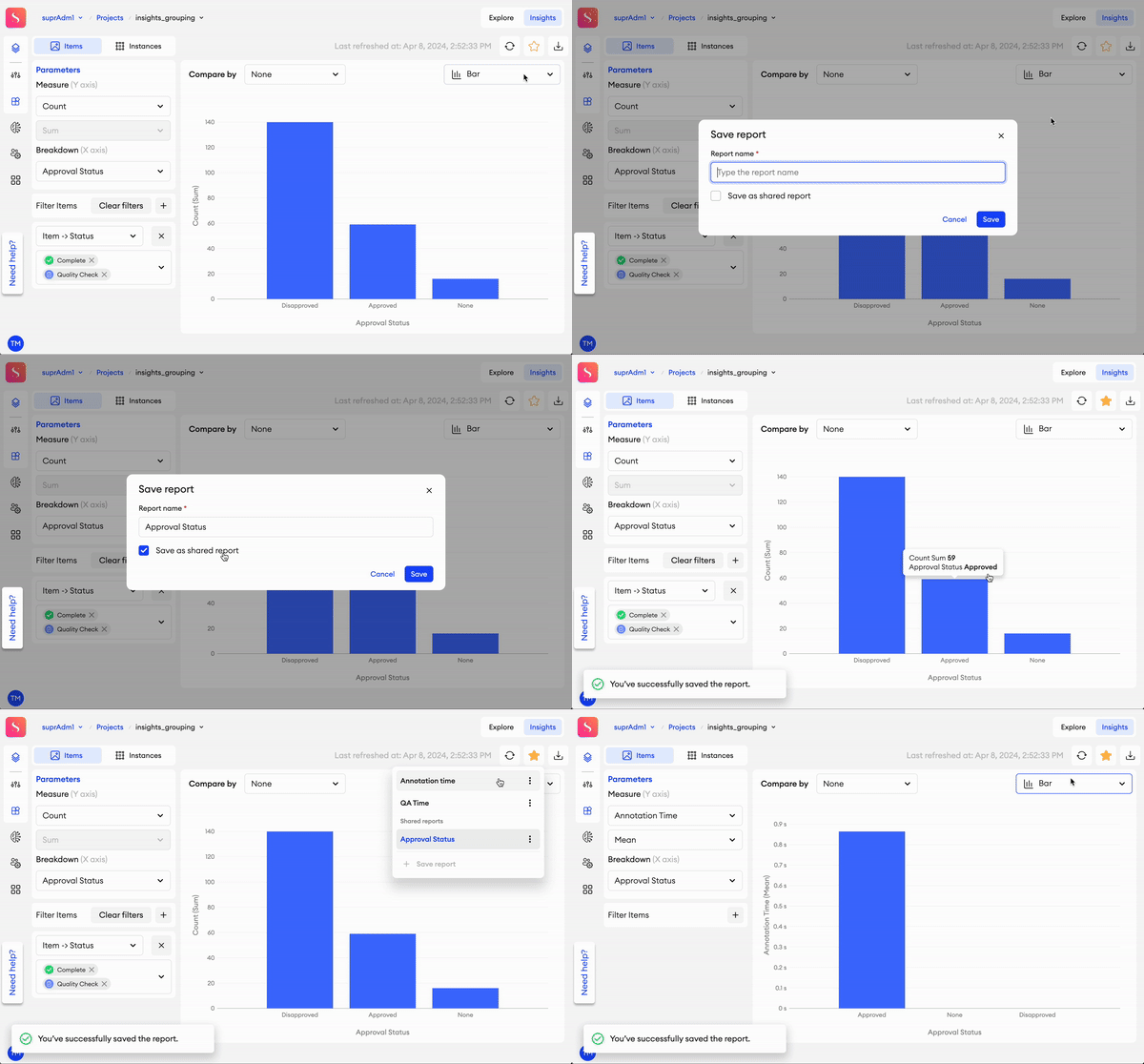
When filtering your project’s data through the Insights tab, you can save your filtration settings as a Report. When clicked, a report will apply all of its corresponding filters and preview parameters to save you time from doing it again manually.
To save a report:
- In the Insights tab, click on the star button.
- Type in a name for your report.
- Check Save as shared report if you want the report to be visible to other admins (optional).
- Click Save.
Edit report
- In the Insights tab, click on the star button.
- Find the report you want to edit and click the three dots
⋮. - Click Edit.
- Make your changes to the report accordingly.
- Click Save.
You can’t edit reports made by other users.
Delete report
- In the Insights tab, click on the star button.
- Find the report you want to edit and click the three dots
⋮. - Click Delete.
Updated 5 months ago